

Fundraising & Donations
April 8, 2026 · Last updated on April 27, 2026
Recipe: Personalise your donation ask for previous donors
# Recipes for success
# Donations
# Fundraising
Set up tailored donation funds in your checkout to target previous donors with more powerful asks. Move away from a one-size-fits-all approach and start communicating with your donors in a more personalised way.

What you need
- Access to the admin and insights & mailings Interfaces in Spektrix.

Time required
30 minutes

What will this help me achieve?
- Deeper understanding of your donors: Use standard reports to analyse donor behaviour and uncover actionable insights.
- Increased donation income: Achieve a higher web conversion rate and a higher average basket donation from previous donors.
- Stronger donor relationships: Build loyalty and increase your number of regular, repeat donors.

Concepts we'll be using
- Donation Conversion Analysis Report: A standard report in Spektrix that provides an analysis of the percentage of orders containing donations and tickets.
- Customer Lists and Local Segments : Used to create a list of contacts from your database.
- Auto tags : Tags applied automatically to customer records based on their purchasing behaviour.
- Funds : The specific donation asks displayed to customers in your online checkout flow.
- Running a customer list through a report : Used to find Customers that appear in both a customer list and a report.

Prep
Record your benchmark data so that you can measure the impact of your action. Make a copy of our tracking document to record your benchmarking data.
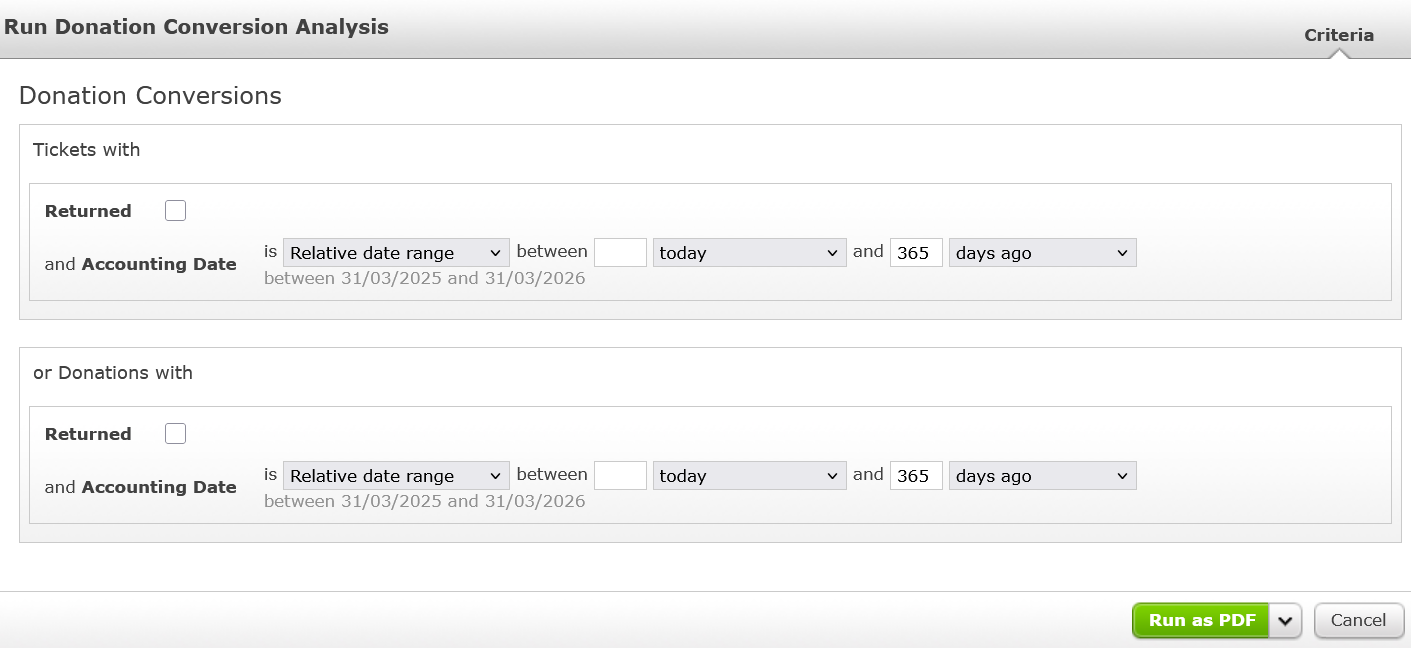
- In Spektrix, go to insights & mailings > reports and run the donation conversion analysis report using the donation conversions standard criteria set. For both tickets and donations, choose a relative date range of today and 365 days ago:
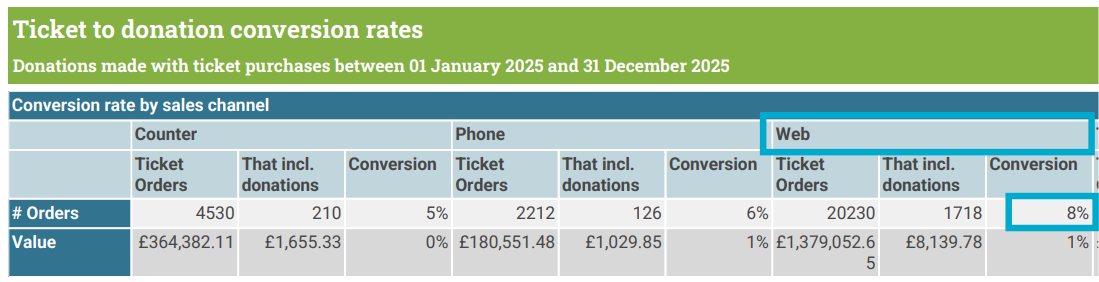
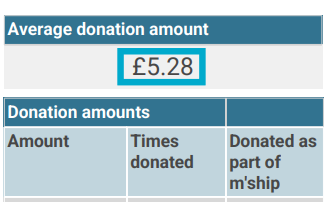
- Once the report has run, note down your starting metrics in your tracking document: web conversion rate and average donation amount.
TIP: Create a shortcut for this report with this date range to speed up finding it next time you need to run it.
4. Create a new customer list named “donation ask for previous donors”. Add a description which explains that this customer list is used to analyse your previous donor behaviour. Save it in a folder so that you can easily find it again.
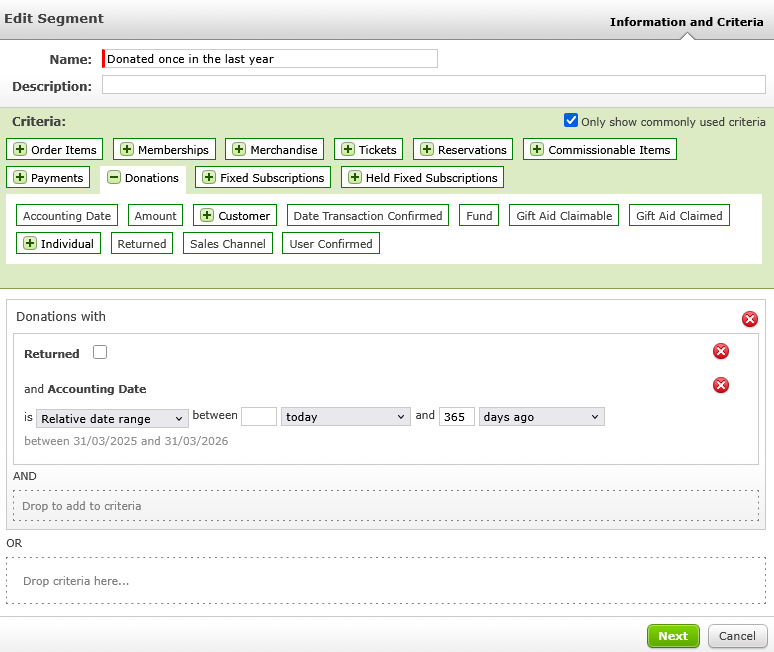
5. Within the customer list, build one local segment to identify donors who have donated once. Use a purchasing segment with the accounting date metric from the donations wrapper (relative range: today and 365 days ago). Click next and set the total number of items purchased to between 1 and 1:
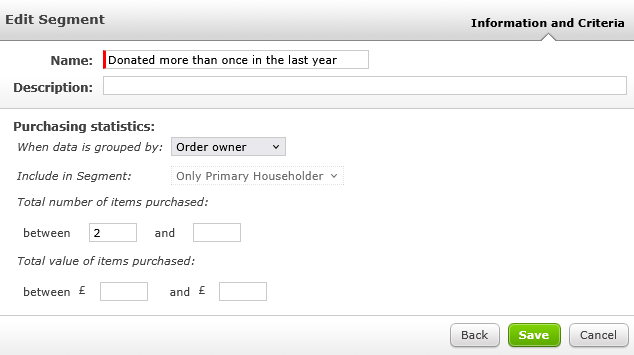
6. Build another local segment to identify donors who have donated more than once. Use a purchasing segment and the accounting date metric from the donations wrapper (relative range: today and 365 days ago). Click next and set the total number of items purchased to between 2 and blank:
7. Add one segment at a time to the customer list, update the count on the list to see how many people fit the criteria, add the number to the benchmark document.
8. With only one of the segments applied, run the customer list through the donation conversion report with the same dates. Note down the web conversion and average basket donation numbers in your benchmarking document.
9. Repeat steps 7-8 for the second segment.

Activate
Segmentation
Auto tags
- Go to the admin interface > tags and create two new auto tags matching the criteria of your segments (e.g. "donated once" and "donated 2+").
- Check the box to "run the auto tag after the customer record is created and after the transaction is confirmed" and click save.
Funds
- Go to the admin interface > other > funds and create a new fund for each segment. In the description, add a tailored message to thank the customer for their support and encourage them to donate again. For example, "Your continued support is invaluable! Please consider making another donation towards our community and education events."
- In each fund's settings, make sure the display on web and active boxes are checked.
- Set the event criteria to always and the customer criteria to specific customers using the auto tags you have created.
- Configure the default ask amounts for different basket totals. Make sure that £0 baskets have a default ask amount. Click save.
Reporting
- Schedule the Donation Conversion Analysis report to automatically send to your inbox on a regular basis to track your ongoing progress against your benchmark.

Try this twist
Once your funds are live, take it a step further by using event criteria to tailor asks based on genre (e.g., comedy bookers, family shows) or by venue.

More to explore
Once you've set up tailored donation funds, you'll be able to maximise donated revenue with your marketing strategies for ticket sales. Why not take your fundraising automations a step further with the Fundraising Appeal Program Template ?
Join the Conversation
- Fundraising & Donations Community Forum: You are not alone! Chat with fellow arts fundraisers, share ideas and see what’s working well for others in the sector.
- The Philanthropy Series: We host regular webinars curated specifically to support fundraisers. You can rewatch past sessions or register for upcoming events.
Comments (0)
Popular

Dive in
Related
Recipes and Toolkits
Recipe: Group Your Email Campaigns for Clearer Reporting
Mar 26th, 2026 • Views 113
Recipes and Toolkits
Recipe: Group Your Email Campaigns for Clearer Reporting
Mar 26th, 2026 • Views 113