

Recipe: Understanding and Managing Auto Renew Membership Failures
# Memberships
Makes: A repeatable follow up process for investigating failed auto-renewals giving you a clear understanding of why scheduled auto renew payments can fail and the tools you need to turn those memberships from lapsed to retained.
November 17, 2026When an auto renewal payment fails, the first step is to understand why. This recipe helps you to identify which members have been affected, diagnose the likely cause of that failure, and take action to encourage retention and improve successful auto renewals.

What you need
- Access to Admin, Settings and Insights & Mailings Interfaces
- A grace period that gives your team time to follow up failed renewals

Time required
Cook: 5-10 minutes per failed renewal

What will this help me achieve?
- Maintain membership revenue by decreasing your rates of lapsed members
- Improve your auto renewal rate by catching accidental drop off
- Identify members whose auto-renewal payments are likely to fail ahead of time
- Build stronger relationships with your supporters by having an opportunity to connect with them directly

Concepts we’ll be using
- Grace Period — The period after a membership expires during which a customer can still renew before being marked as lapsed
- Auto Renewable Memberships — A payment method that uses Continuous Authority to automatically charge a customer's stored card upon membership renewal
- Auto Renew Membership Report — A daily system-generated report showing all successful and failed auto renewal transactions
- Stored Cards — Payment card details saved in a customer's cardholder wallet and used for automated membership renewals

Prep
Set up these reports to understand how often auto renews are failing, and establish a baseline for tracking your progress.
- Check the status of your memberships
- Request the ‘Membership Auto Renewal Status Report’ report be added to your system by contacting support .
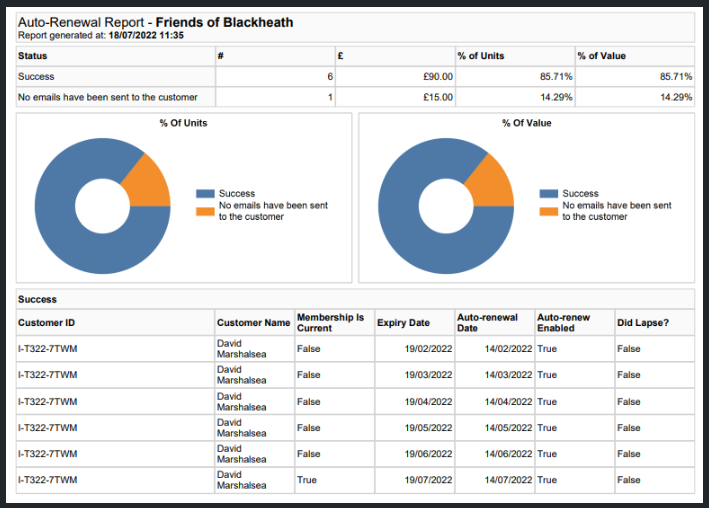
- To check the status of your current memberships, run the report with the criteria BY Membership AND Auto Renew Payment Date was in the last 365 days.
Track the renewal status of all current memberships. Use the pie charts to understand the percentage in each stage of renewal. The pie charts show status in counts of memberships and amount of revenue. Use this to prioritise your reach outs
- Identify trends in membership renewal
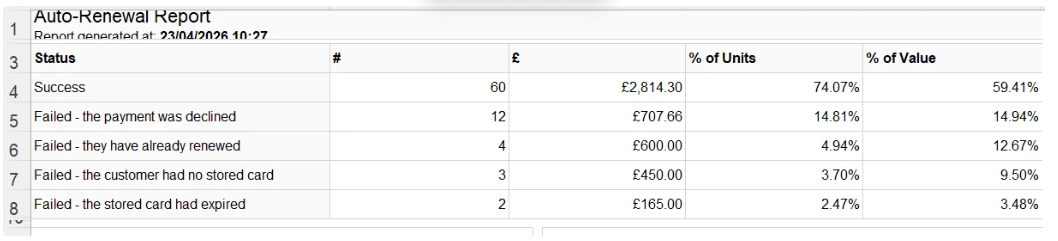
- Request the ‘Memberships Auto Renewal Status Report - Aggregate’ report be added to your system via support . This report gives you an auto renew overview with status counts, values, and percentages.
- If you believe failure rates have increased, run the report with the criteria IS Auto Renew AND Not Returned AND Auto Renew Payment Date is this year.
- Compare the report to the same period last year to see if failure rates have changed significantly and require action.
- If the data suggests a trend, follow the guidance in Recipe: Reclaim Time by Minimising Auto Renew Membership Failures to review your setup.

Activate
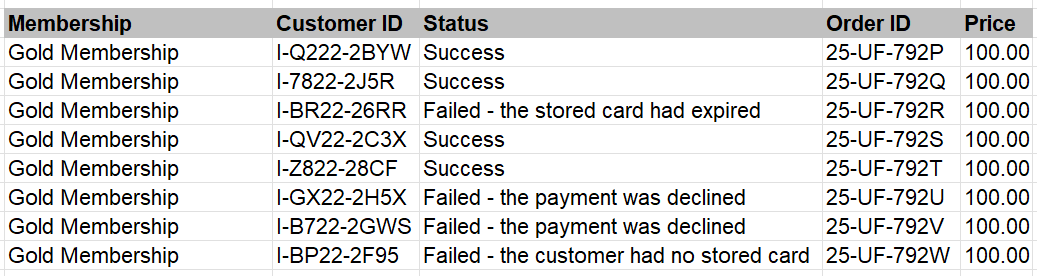
The Auto Renew Membership Report is a system generated report sent to specified contacts in your organisation on a daily basis. This report shows you a row per membership including the Customer and Order ID. The status shows why membership auto-renewals failed.
- Contact support to find out who at your organisation this is being sent to. Ask for additional recipients to be added if required.
- Review the data in the Auto Renew Membership Report to find out which memberships have failed to renew. Use this information to inform your follow up conversations with the customer.
Status | What it means | What to do |
Failed - the payment was declined | A card was stored but the bank rejected the transaction (e.g. insufficient funds, card blocked). | Spektrix only tries the payment once, so the member needs to be contacted to retry manually. |
Failed - the customer has no stored card | No card was saved or linked to that membership at the time of renewal. | Payment can't be attempted without a stored card, so the member needs to be contacted to retry manually and store a card. |
Failed - they have already renewed | The membership has been manually renewed within the renewal period before the auto-renewal ran. | This is not a true failure as the member is retained. No action is required. |
Failed - stored card had expired | A card was stored against the membership but had passed its expiry date. | The member needs to update their card details and renew manually. The new card needs to be stored in their wallet and against the membership. If you use Spektrix Payments, payments will continue regardless of a card’s expiry date. |
Tip: Check failed transactions with your payment provider (MyOpayo or Adyen Essentials) to gather more insight into why a payment may have failed and inform your conversations with customers.
Members are considered lapsed once they’ve passed the membership grace period. You can increase the grace period to allow more time to contact customers or troubleshoot potential failed renewals. If you make this change it will affect all ongoing and future memberships of that type, it will not change memberships currently in their auto renew period.

More to explore
When you understand how to manage your auto renew membership failures, you’ll be able to reduce your failure rate and improve membership retention.
Comments (0)
Popular

Dive in
Related
Recipes and Toolkits
Recipe: Reclaim Time by Minimising Auto Renew Membership Failures
Aug 6th, 2026 • Views 92
Recipes and Toolkits
Recipe: Reclaim Time by Minimising Auto Renew Membership Failures
Aug 6th, 2026 • Views 92