

Fundraising & Donations
February 4, 2026 · Last updated on September 15, 2026
Recipe: Maximise Gift Aid Declarations

# Fundraising
# Donations
# Recipes for success
Take the opportunity to collect Gift Aid declarations and acknowledge donors who have already made them.
In the tax year to April 2025, income from Gift Aid for UK charities totalled approximately £1.7 billion. Maximising Gift Aid on your donations is a key revenue generator, therefore, ensuring the maximum number of Gift Aid declarations on customer records is crucial.
By using Dynamic Content in your daily thank you emails, you can both thank those with a declaration, and remind those who haven’t yet completed it about the benefit of doing so. Declarations can also be added retrospectively to secure the extra income.

What you’ll need:
- A Dotdigital email campaign
- A synced tag group
- A customer list schedule

Time required
35 min

What will this help me achieve?
- Maximise your donation income by securing more Gift Aid declarations
- Automate your tailored thank you emails based on a customer’s Gift Aid declaration status
- Educate your customers on the benefits of supplying a Gift Aid declaration

Concepts we’ll be using
- Auto tags
- Dynamic Content

Prep
- Ensure you have a tag group synced with Dotdigital
- In this group, create an auto-tag with a customer segment of “Has Current Gift Aid Declaration”
- Give the auto-tag a name that is less than 16 characters (for example “Gift Aid Yes”)
- Set up an automated thank you email using a Customer List Schedule
- In Dotdigital, create a new Data Field for the tag (for example TAG_GIFT_AID_YES)

Activate
- In your Dotdigital email campaign, add a dynamic content block and insert a text block.
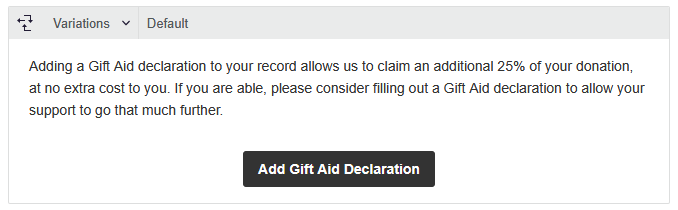
- In the “Default” variation, insert the text you wish to appear when a customer does not have an active Gift Aid declaration.
- Insert a button under the text. Add a link to this button that directs to the Retrospective Gift Aid Declaration Form iframe.
This variation might look something like this:
4. Click Variations > New Variation > select another contact data field. Choose the tag contact data field you made earlier (e.g. TAG_GIFT_AID_YES), and make sure “Yes” is selected in the dropdown.
5. Add the text to this variation that you would like to appear when the customer does have an active Gift Aid declaration.
It might look something like this:

Finally, save your changes and update / activate your customer list schedule to start maximising your donation revenue.

Try this twist
Did you know you can also add dynamic content to the subject line of your email? Try using the subject line to inform customers without a Gift Aid declaration about its importance.

More to explore
Sharing Customer Data with Dotdigital : Using Contact Data Fields, you can deliver powerful marketing results through advanced segmentation, automation and personalisation.
Grab Attention with Dynamic Subject Lines : Create a highly relevant inbox experience where different segments of your audience see different subject lines from a single email campaign.
Normal Tags and Auto Tags : Tags are a powerful segmentation tool you can use Tags to group customers together who share the same information or characteristics.
Customer List Schedules : Customer List Schedules can be used to schedule integrated emails. For example, to automatically send thank you emails to customers who made a donation yesterday.
Comments (0)
Popular

Dive in