

Marketing & Communications
June 2, 2026 · Last updated on August 28, 2026
Recipe: Improve Open Rates

# Emails
# Marketing
# Recipes for success
Makes: An email that stands out in a crowded inbox
Your subject line and preview text are the most important elements you can improve to influence customers to open your emails.
The subject line catches attention, while the preview text builds curiosity. When these tools are used deliberately together, they reinforce each other to create a clearer, more compelling message that stands out in the inbox and encourages more customers to open your email.

What you need
- Access to Dotdigital to build email campaigns

Time required
Prep time: 5 minutes
Cook time: 2 minutes

What will this help me achieve?
- Make your emails stand out
- Increase your open rates

Concepts we’ll be using
- Personalisation: a tool in Dotdigital which lets you use data from Spektrix to tailor your email campaign to each individual customer.
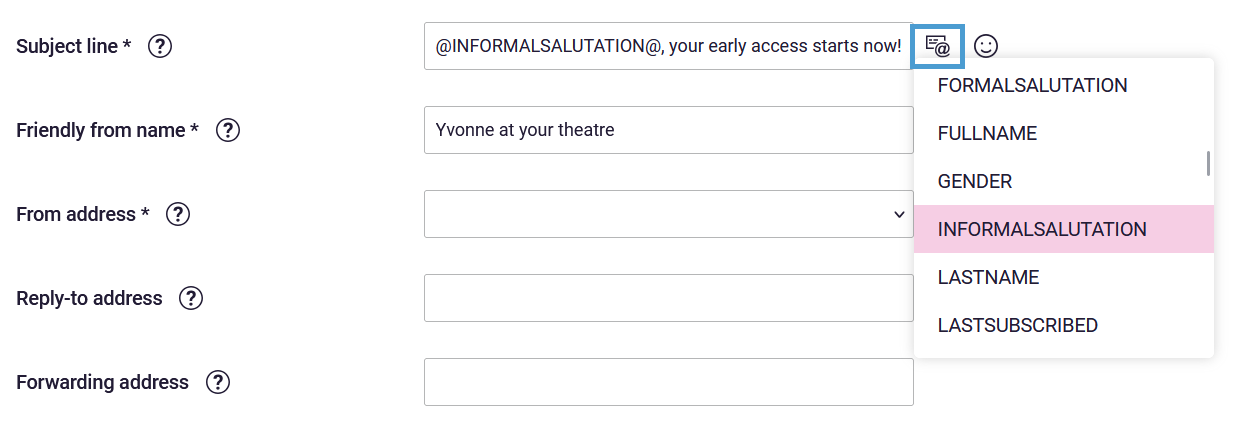
- INFORMALSALUTATION Data Field: used as personalisation to display the first name of the customer if there is one present that is more than one character long.
- Custom Building Blocks: drag and drop blocks in the easy editor which can be used to add custom Spektrix content into your emails.

Prep
Check that your informal salutation field is set up:
- Log into your Dotdigital account
- Navigate to settings > contacts > contact data fields> custom data fields
- Find your informal salutation data field and click properties.
- If you do not have an informal salutation data field, set one up using the field name: INFORMALSALUTATION
- Under default text, enter a fall back that will display if a customer doesn't have an informal salutation. If you do not set a fall back, instead you can write messages knowing the field might be blank. For example:
- With salutation: “John Your Early access starts now!”
- With a fallback: “Friend Your Early access starts now!”
- With no fallback set: “Your Early access starts now!”

Activate
When setting up an email campaign in Dotdigital:
- Click the personalisation button to add the informal salutation data field to your subject line:
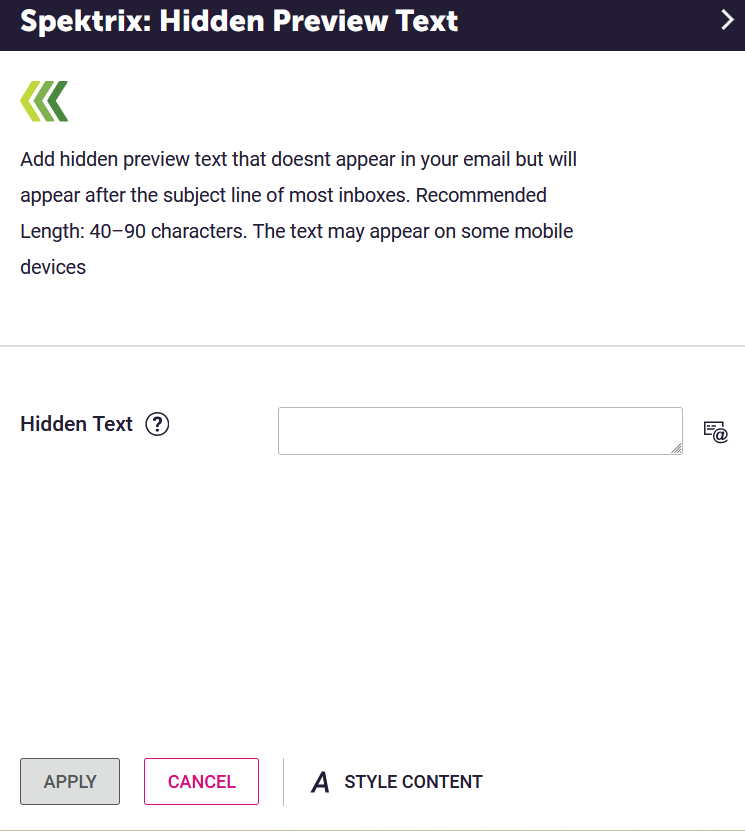
2. In the EasyEditor under building blocks, open the Spektrix folder and drag the Hidden Preview Text block to the top of the campaign.
- In the hidden text field, add your content:
3. Send a test email to check that the subject line and preview text appear as you intend.

Try this twist
Use personalisation strategically: Adding a name can increase open rates, but using it in every email can feel automated. Save it for key campaigns such as welcome emails, special offers, or priority booking announcements.
Use preview text as a second headline: Avoid repeating your subject line in your preview text. Instead, use the preview text to expand on the message and give readers an extra reason to open.

More to explore
- Boost Engagement with Send Time Optimisation : Tailor the delivery time of your emails to the time each customer is most active.
- Split Test Subject Lines to improve Email Open Rates: By pitting two subject lines against each other, you can let your audience’s real-time behaviour determine which version gets sent to the bulk of your mailing list.
- Group your Email Campaigns for Clearer Reporting: Get a deeper understanding of your email performance and the ways your customers interact by tagging and categorising your campaigns.
Comments (0)
Popular

Dive in
Related
Recipes and Toolkits
Recipe: Split Test Subject Lines to Improve Email Open Rates
Apr 6th, 2026 • Views 229
Recipes and Toolkits
Recipe: Split Test Subject Lines to Improve Email Open Rates
Apr 6th, 2026 • Views 229