

Ticketing & Events
May 20, 2026 · Last updated on August 28, 2026
Recipe: Sell Wheelchair Spaces Online
# Ticketing operations
# Recipes for Success
Makes: A smooth, self-serve online booking journey for wheelchair users
This recipe helps you use locks and lock eligibility to sell tickets to customers who need wheelchair access online. By following this process, you can ensure a smooth online booking experience for your access patrons and make sure your front of house teams are aware and prepared to deliver the best experience on the day of the event.

What you need:
- Lock types: One wheelchair lock with lock eligibility, and one wheelchair space lock which will prevent the adjacent seat from being sold.
- Website messaging: Add extra information to your choose seats page to let wheelchair bookers know they’ll need to log in to book their spaces.
- Ticket types: Two ticket types which are available on web. One for customers in wheelchairs and one for companion tickets.
- Price band: If you would like to limit where the above ticket types are available, you will need to set up a price band for this area of the seating plan.

Time Required
Prep: 30 mins | Activate: 15 mins

What will this help me achieve?
- Enable your wheelchair spaces to be booked online by your access customers, whenever they need.
- Automatically hold the adjacent space(s) that need to be removed from the seating plan.
- Allow access bookers to easily book any number of tickets they need, including their companion ticket.
- Have a limited number of wheelchair spaces available online, with the freedom to lock more seats should there be a higher demand.

Concepts we'll be using
- Locks and lock eligibility
- Tags
- Ticket types and price bands
- Event Instances Occupancy and Front of House Reports

Prep
1. Identify customers who require wheelchair access
Decide how you want to identify your customers who require wheelchair access. You can do this with a tag.
Tip: You may want to make this tag visible and ask all of your customers to update their details. You can also find customers who have previously booked wheelchair spaces and apply the tag. We have a recipe card which walks through this process here - Recipe: Capture Access Needs
2. Create your locks
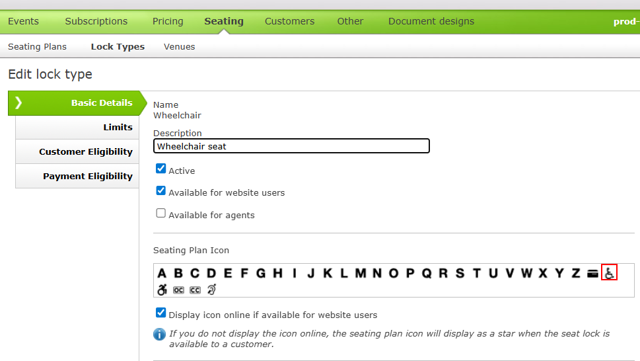
Create a wheelchair lock type which is active and available on the website;
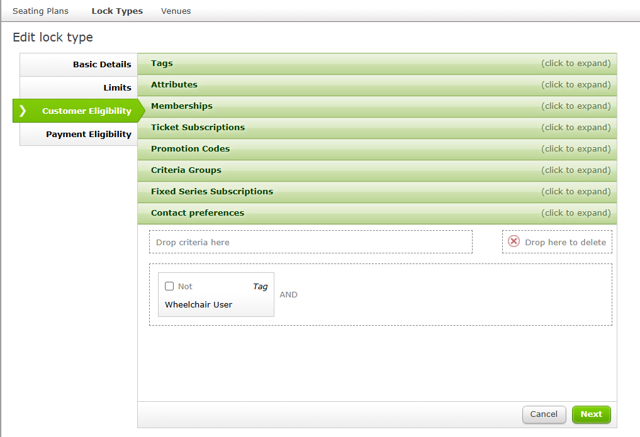
In the Customer Eligibility tab, find and drag the tag that will be applied to your bookers requiring a wheelchair space. Read our article on Customer Eligibility for more information.
If you need to remove two seats in your venue you will want to create another lock type for the additional seat which is to be removed. Please note this locked seat will remain offline, do not tick ‘available for website users’ on the lock type.
You may want to set a Transaction Limit to the number of Locked seats that can be sold in each transaction.
If you don’t use Reserved Seating Plans, you might want to use a Multi-Area Unreserved Seating Plan to indicate that accessible Tickets are available. To request a Multi-Area Unreserved Seating Plan, complete a Seating Plan Request Form .
3. Configure tickets and pricing
Create two ticket types - Access Booker and Essential Companion and make them available for the web. You could also choose to set up a specific Access/ Wheelchair price band for this area of a reserved seating plan if you want to restrict where these ticket types can be used.
4. Update Website Messaging
Add a clear message to your choose seats page to prompt wheelchair users to log in or update their account to enable them to view and book accessible tickets. If a customer does not have the correct tag on their account, the online message should prompts them to amend their customer account information.

Activate
1. Apply your locks to the seating plan
Lock the seat next to the wheelchair space (which needs to be removed) so that it stays off-sale and does not appear to any customers. Lock the wheelchair space with your wheelchair lock which can be purchased by customers who meet the eligibility criteria. You may also want to lock off the seat next to the wheelchair space for an essential companion.
This can be set up in the same way as the Wheelchair lock - with eligibility criteria for those who need an essential companion ticket.
We’d recommend creating a lock overlay to be used for each of your seating plans, highlighting where these locks are placed to ensure consistency and save time.
2. The online booking journey
When customers who require wheelchair access select an event they’ll be prompted to log in. If their customer record is eligible they’ll be able to purchase a ticket for the wheelchair
space and companion seat.
3. For box office and front of house teams
Make the Event Instances Occupancy Report available to your box office and front of house teams by adding it to the Sales Interface . This will allow the team to keep track of which wheelchair spaces have been sold and which seats need to be removed.
We also have some non-standard Front of House reports which might suit your needs, please get in touch with support to find out more. You can also have these reports running on a Report Schedule to be sent to all relevant team members within good time of the event.

More to explore
Comments (0)
Popular

Dive in
Related
Recipes and Toolkits
Recipe: Measure the Impact of Making Accessible Bookings Available Online
Sep 3rd, 2026 • Views 41
Recipes and Toolkits
Recipe: Measure the Impact of Making Accessible Bookings Available Online
Sep 3rd, 2026 • Views 41