

Marketing & Communications
March 14, 2026 · Last updated on October 20, 2026
Recipe: Build Post-Purchase Upsell Journeys
# Emails
# Automation
# Recipes for Success
Make an automated pre-event email journey that promotes supplementary events through a dedicated subsite
Enhance your customer experience and drive secondary spend by offering tailored add-ons, like programmes/playbills, drinks, or parking, at the perfect moment.
By connecting customer data with a seamless, secure subsite booking flow, you can automate your upsell strategy and ensure every attendee has the opportunity to upgrade their visit. When combined with the Direct Checkout , customer details are pre-filled from the email, removing the need to log in or navigate a full checkout process, making the upsell easier than ever! .

What you need
- Spektrix Payments implemented at your organization.
- Contact Spektrix Support to enable your domain in Adyen
- Have Direct Checkout enabled for the relevant Event Instances and Supplementary Events
- A Subsite
- A Pre-Event Email which uses the Pre/Post Event Header Block

Try this twist
You can integrate the post purchase upsell directly into your website. Visit our Integrations Portal for more details, and reach out to [email protected] with any questions.

Time required
- Initial setup: 2 hours (may vary depending on your existing setup)
- Maintenance: 5 minutes per campaign

What will this help me achieve?
- Make money: Increase secondary spend by promoting add-ons before the visit.
- Improve audience relationships: Provide a tailored, helpful customer journey that enhances the event experience.
- Save time: Automate the upsell process so it runs in the background for every performance.

Concepts we’ll be using
- Attributes: Custom fields used to store data and trigger specific behaviours in Spektrix and Dotdigital.
- Direct Checkout: A guest-style checkout where there is no login and the customer does not create an account before purchasing.
- Supplementary Events: Items or events (ex: parking, pre-show drinks, artist talk back) linked to a main "parent" event.
- Pre-Event Email Campaign: You can update your existing pre-event email campaign with liquid script or you can use the pre-event email template.
- Spektrix Subsite: A lightweight, standalone site powered by Spektrix Link for online purchase flows.
- Custom Building Blocks: Code blocks which can be easily added to your email campaigns to power liquid script functionality.

1. Set up your Supplementary Events. If you already have Supplementary Events set up, take this opportunity to refresh the images and descriptions to ensure they are as effective as possible.
NOTE: If you set up supplementary events they will become available to customers in your existing ticket purchase path. The supplementary events page is displayed to customers after ticket selection and before the basket/cart page.
2. Set up 2 Instance Attributes, both checkbox and visible in the API :
- AllowForPostPurchase
- Mark this attribute as true (box checked) against instances of the supplementary events you would like to upsell.
- DotdigitalPreEventUpsell
- Check the box against the Event Instances where you’d like to upsell Supplementary Events.
You can use the bulk instance updater to apply these Attributes to multiple events and instances at once. Find out more about event attributes and instance attributes on the Support Centre.

Activate
1. In Dotdigital, open your Pre-Event Email campaign and add a Decision Block. Click the new content button and in the When criteria box enter the following statement:
instance.instance_attribute_dotdigitalPreEventUpsell_yesno == true
2. Then, drag and drop the Pre-Event Upsell Button (found in the Spektrix Pre/Post Event Email folder under Custom Building Blocks) into the When section of your Decision block.
3. Click into the block to configure the button:
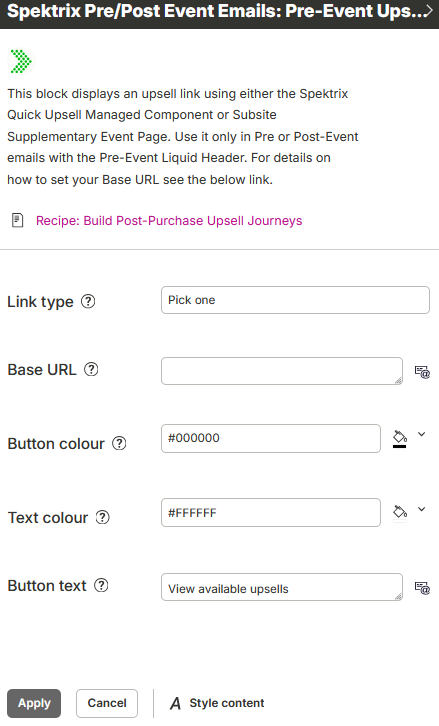
- Link type: Add-on Component
- Base URL: Enter your Subsite URL (including http://www)
- Button colour: Enter a Hex code to set the colour of the button
- Text colour: Enter a Hex code to set the colour of the text on the button
- Button text: Enter the text you wish to display on the button
4. Populate the When section of your Decision block with your upsell ask. You can add your organisation's custom text or images.
5. The Otherwise section will display if there are no associated Supplementary Events. You can choose to add a generic upsell message and button link to this section or leave it blank to display nothing in this scenario.
Measure your success
Run the event sales report (summary) for an overview of your event sales or run the event sales report (instances summary) to look at specific instances and ticket types to monitor your revenue from supplementary events sales. You can leverage the Campaign Report in Dotdigital to see your ROI on upsells made using this email.

More to explore
Once you've built your post-purchase journey, you'll be able to drive higher ROI with your marketing strategies for ticket sales.
- Supplementary Events : Best practices for linking items to main events.
- Getting Started with Subsites : Detailed, technical steps for setting up your subsite.
- Pre-Event Email Template : How to use the pre-event email template in Dotdigital.
Comments (0)
Popular

Dive in